🧩 Lesson 2.1: GameObjects & the Component Model
This is the big one. Almost everything in a Unity game is a GameObject, and every GameObject is built from components. Understand this one idea and Unity suddenly makes sense.
🎯 Learning Objectives
By the end of this lesson, you will be able to:
- Explain what a GameObject is (a container)
- Explain what a Component is (a feature you attach)
- Add and remove components in the Inspector
- See why this "mix and match" design makes Unity so flexible
Estimated Time: 30 minutes
In This Lesson
Everything Is a GameObject
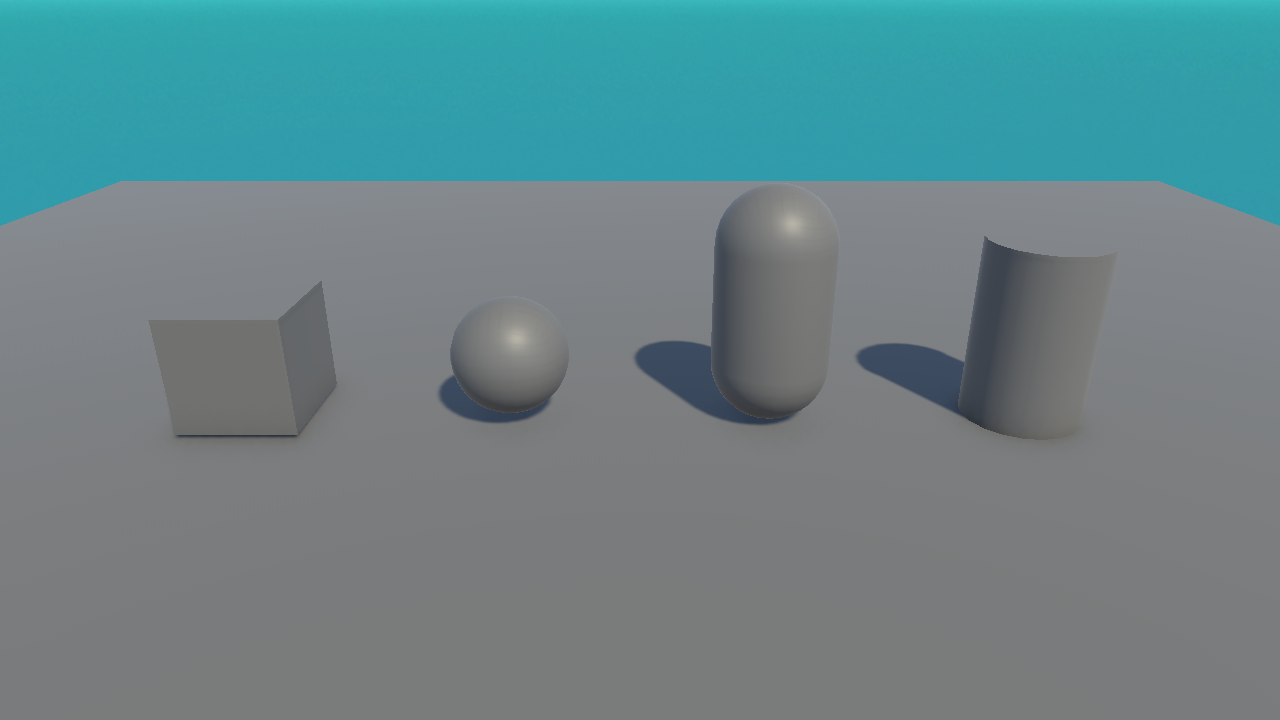
The cube you made, the floor, the camera, the light — in the Hierarchy they're all the same kind of thing: a GameObject. Characters, cameras, lights, sound sources, even invisible helpers are all GameObjects. Here are four different primitives, and despite looking different, each is just a GameObject:
📖 Definition
GameObject: the basic object in a Unity scene. On its own it does almost nothing — it's an empty container with a name and a position. Its abilities come entirely from the components attached to it.
Components Are the Features
If a GameObject is an empty container, components are the features you drop into it. Each component adds one specific ability. You saw several in the Inspector during the tour:
| Component | What it gives the GameObject |
|---|---|
| Transform | A position, rotation, and scale. Every GameObject has one — it can't be removed. |
| Mesh Filter + Mesh Renderer | A 3D shape and the ability to be drawn (visible). |
| Collider | A physical boundary so it can be bumped into. |
| Rigidbody | Physics — gravity and forces (Module 5). |
| Audio Source | The ability to play sounds. |
| Script (your C#) | Any custom behaviour you invent (Module 3). |
💡 The key insight: a GameObject is what its components make it. A camera GameObject is "a GameObject with a Camera component." A player is "a GameObject with a mesh, a collider, a Rigidbody, and a movement script." You compose behaviour by stacking components.
The Backpack Analogy
Think of a GameObject as an empty backpack. The backpack itself doesn't do much — but you can put things in it. Put a water bottle in, and now it carries water. Add a laptop, and now it carries a computer. Components are the things you put in the backpack; each one adds a capability.
the empty backpack] GO --> T[Transform
where it is] GO --> M[Mesh Renderer
how it looks] GO --> C[Collider
its physical bounds] GO --> R[Rigidbody
gravity & forces] GO --> S[PlayerMovement.cs
your behaviour]
Remove the movement script and the player stops responding to keys, but it's still there, still visible, still solid. Each component is independent — that's the flexibility.
Adding & Removing Components
You manage components entirely in the Inspector:
- Add: select the GameObject, scroll to the bottom of the Inspector, click Add Component, and search for what you want (e.g. "Rigidbody").
- Remove: click the ⋮ (three dots) on a component's header and choose Remove Component.
- Disable temporarily: untick the checkbox at the top-left of a component to switch it off without deleting it.
⚠️ Watch Out
The Transform component can't be removed — every GameObject must exist somewhere in space. That's the one component you'll never see a remove option for.
Hands-on Exercise
🏋️ Exercise: Inspect and add
- Open your scene from Lesson 1.4 and select the Cube.
- In the Inspector, list its components. You should see Transform, Mesh Filter, Mesh Renderer, and Box Collider.
- Click Add Component, search for Rigidbody, and add it.
- Press Play. The cube now falls — because a Rigidbody gave it gravity! Press Play again to stop.
💡 What just happened?
You changed the cube's behaviour without writing any code — purely by adding a component. That's the component model in action. (More on Rigidbody in Module 5.)
🎯 Quick Quiz
Question 1: What does a GameObject do on its own, with no components except Transform?
Question 2: Which component can never be removed from a GameObject?
Summary
🎉 Key Takeaways
- Nearly everything in a scene is a GameObject — an empty container.
- Components give GameObjects their features; you stack them to compose behaviour.
- You add, remove, and disable components in the Inspector.
- The Transform is the one component every GameObject always has.
🚀 What's Next?
The component every object shares is the Transform. In Lesson 2.2 we'll master it: position, rotation, and scale.
🎉 Core concept unlocked!
GameObjects + Components is the mental model behind all of Unity. You've got it.